


Agent – Modes
Macaly has three modes that control how the agent approaches your requests. Each mode changes when the agent creates plans and asks questions, giving you different levels of speed versus visibility.You can switch between modes anytime using the mode selector in the chat interface, right next to where you type your message. The mode you choose depends on what you’re building and how much control you want over the process.
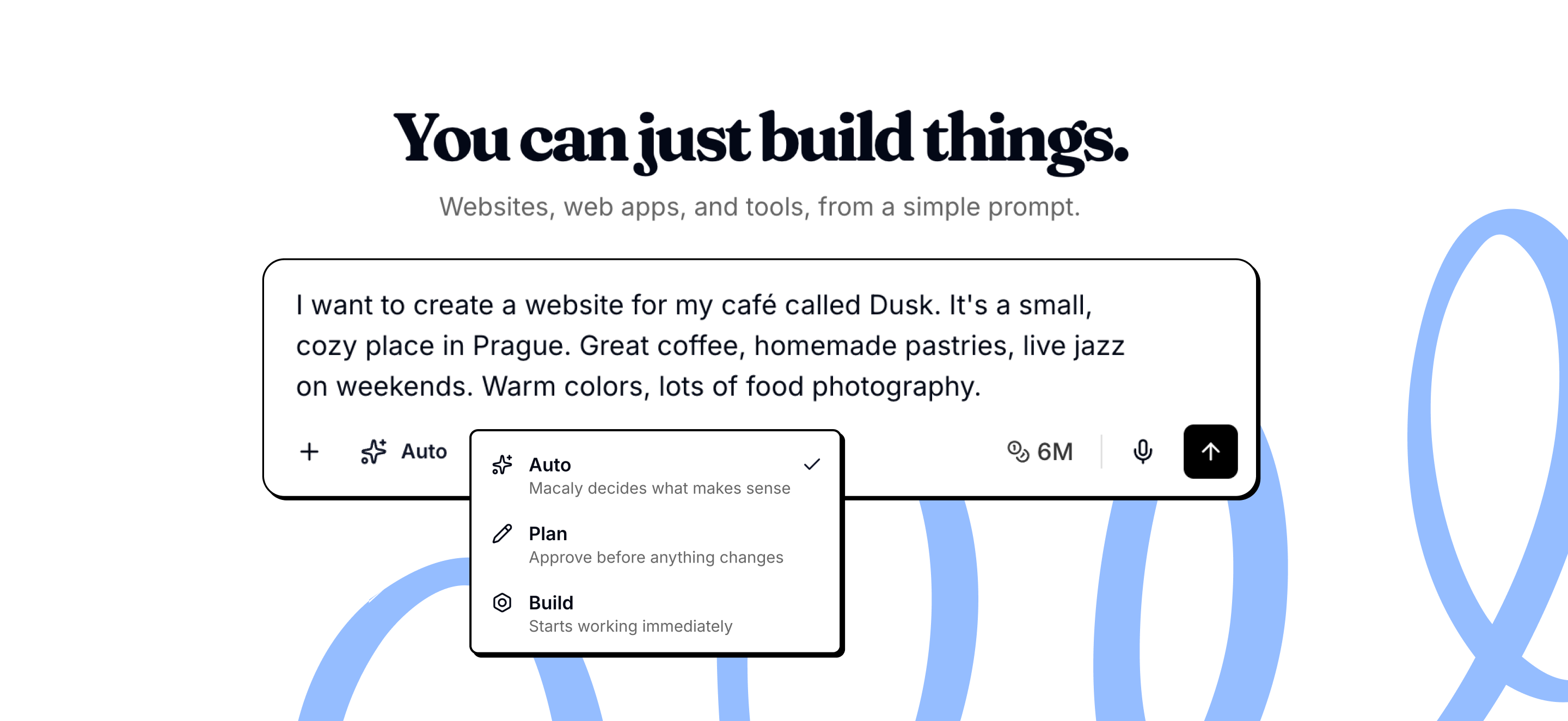
Auto (default)
Auto mode lets the agent decide when to plan and when to build directly.For simple requests, the agent builds right away. For complex or unclear requests, it creates a plan first or asks clarifying questions.This is the default mode because it balances speed and visibility. You get fast results when appropriate, and the agent slows down to check with you when needed. Use Auto when:
- You’re working on a mix of simple and complex tasks
- You want the agent to make judgment calls
- You’re not sure which mode fits your request
Plan
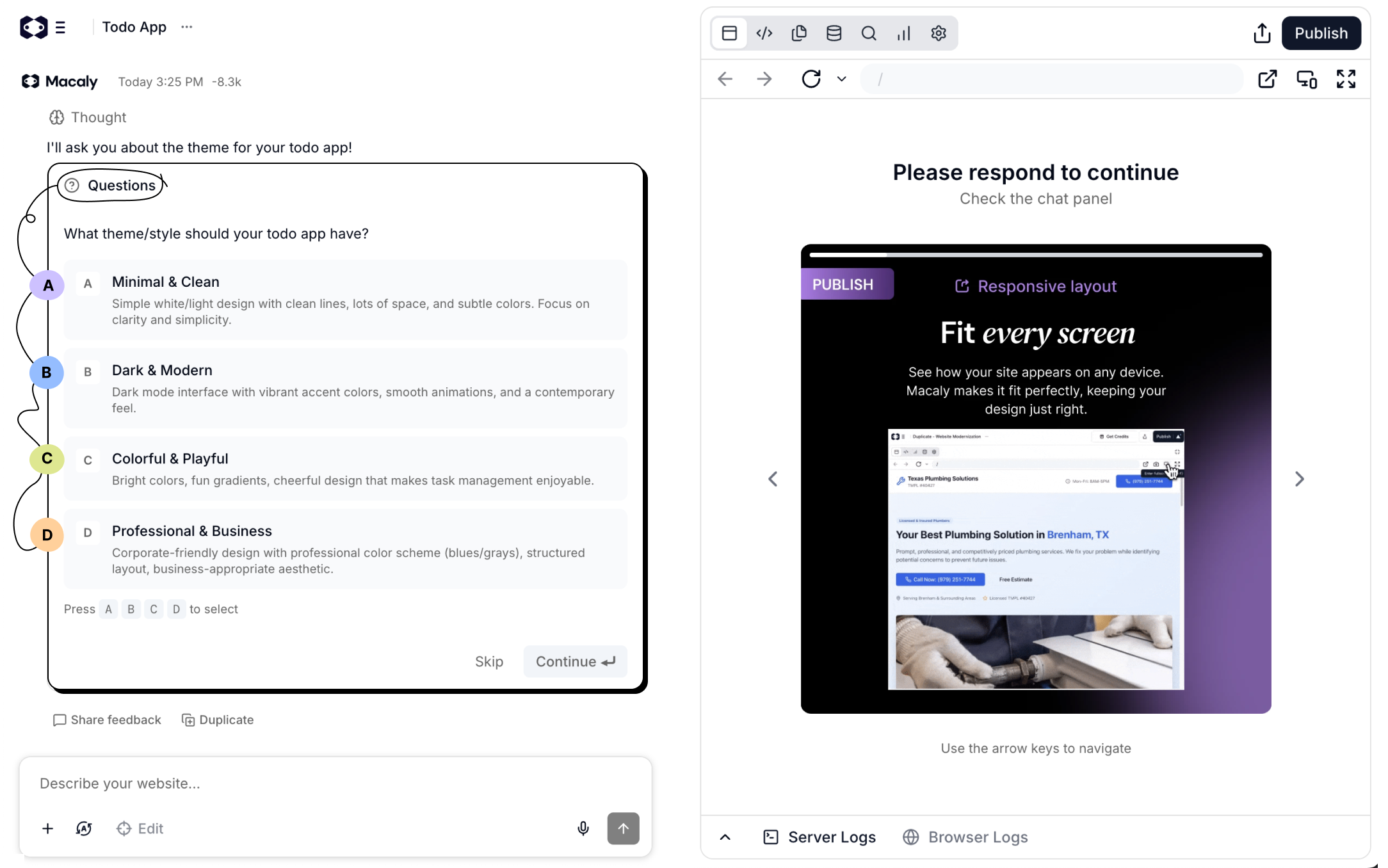
Plan mode means the agent always creates a plan before building anything.Turn it on from the mode selector next to the message box. The agent breaks your request into steps, asks any clarifying questions, shows you the approach, and waits for your approval. No code is written until you review and confirm the plan.This gives you full visibility into what will happen before it happens. You can see the agent’s interpretation of your request and adjust the approach before work starts. Use Plan when:
- You’re building a complex feature
- You want to understand what will be built
- You want to review the approach before committing
- You’re learning how Macaly works
Build
Build mode means the agent works without interruption.It doesn’t create plans or ask questions. It builds directly based on your request, making reasonable assumptions when details are unclear. Use Build when:
- You know exactly what you want
- You’re making simple, straightforward changes
- You’re continuing work from an approved plan
- You don’t want to wait for questions or plans
What each mode can do
Not all modes let the agent pause for your input.
| Mode | Can ask questions | Can create plans |
|---|---|---|
| Auto | Yes | Yes |
| Plan | Yes | Yes (always) |
| Build | No | No |
Why planning helps
Planning isn’t just about control. The agent often builds better when it thinks through the approach first.
Catch misunderstandings early
If the plan doesn’t match what you had in mind, you can correct it immediately. Fixing a plan is easier than undoing finished work.
See what will change
Plans explain the approach in plain language. You don’t need technical knowledge to understand what will happen.
Adjust direction before work starts
You can give feedback on the plan to change the approach, add details, or remove parts you don’t need.
Complex features benefit most
When adding multi-page features, authentication, or database functionality, a plan ensures alignment before significant work begins.
When planning isn’t necessary
For simple requests, planning adds overhead without value:
- Changing text or content
- Adjusting colors and styles
- Fixing obvious bugs
- Anything that takes fewer than three steps
For these, Auto or Build or Edit mode gets you results faster.
Frequently asked questions
The agent got stuck or is taking too long. What can I do?
If the agent shows no progress for more than 10 to 15 minutes, try duplicating the chat using Start Fresh (No Messages). This usually resolves the issue.
The agent keeps making the same error. How do I avoid burning credits?
When reporting an error, be as specific as possible. Describe what you were doing before the error, what you see now, what is not working, and what the correct behavior should be. The more detail you provide, the better the agent can fix it on the first try.
How many steps can the agent take per request?
Macaly has approximately 20 steps per user request. If your prompt is too complex, the agent may not complete everything. Break large requests into smaller sequential steps: send one specific change per message, verify it works, then move on.
How do I create a backup of my project?
Duplicate your chat whenever the project is in a good state, especially before making larger changes. Use Keep Everything (With Messages) to preserve the full chat history, or Start Fresh (No Messages) to carry over the project code without the chat history. Each duplicate has its own separate database.
Can I restore a previous version of my project?
Yes. Under any agent response in the chat, there is a Restore this version button. Clicking it reverts the project code to the state it was in when that response was generated.
If you have any further questions, simply raise a support request from within your Online Control Panel or call us on 0345 363 3633. Our Customer Care team is here to help and ready to assist you with your enquiry.