


How to set up a POP3 account in Mozilla Thunderbird
This article will guide you through configuring your email on Thunderbird
Names.co.uk does not support third-party software or devices. For more information on Thunderbird, please visit https://support.mozilla.org/en-US/products/thunderbird
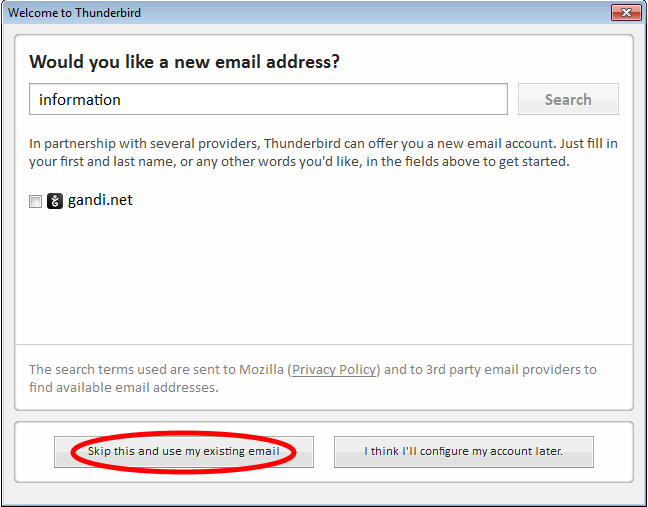
If this is the first email account setup on Thunderbird it will take you straight into the account settings where you will need to select Skip this and use my existing email If this is the case please skip straight to Account Settings below.
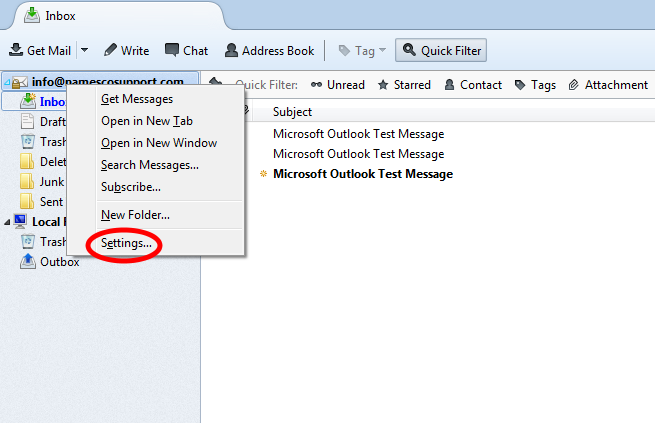
If it is not the first email account you will need to do the following to get to account settings.
Right click on an existing account and select Settings.
On the next screen select Account Actions then Add Mail Account….
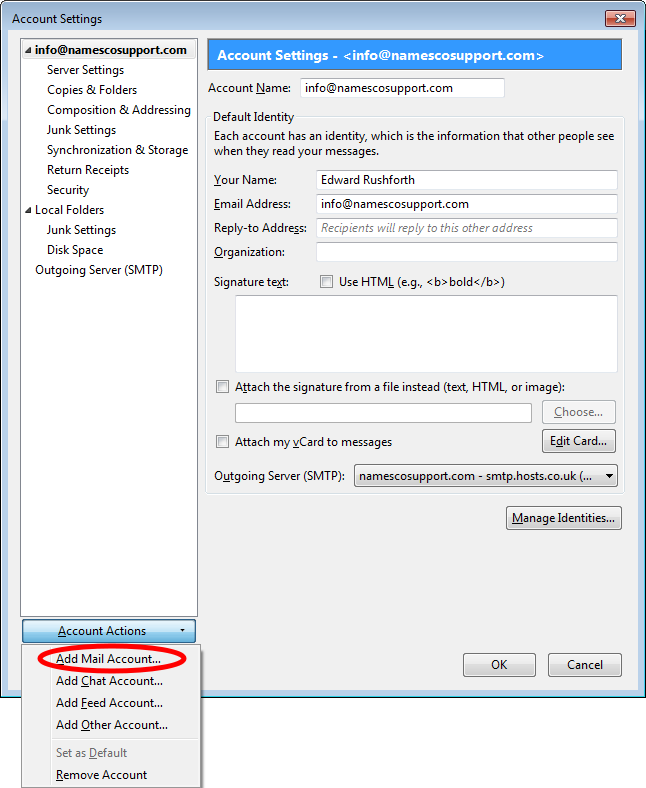
Account Settings
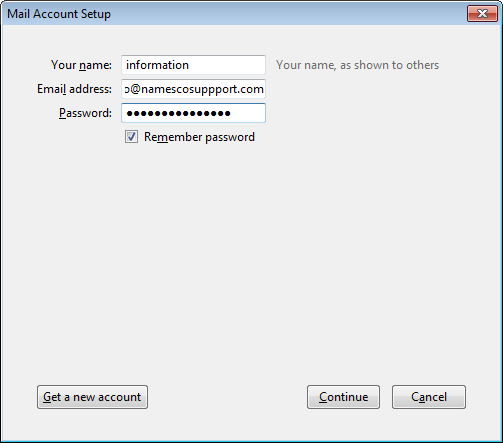
Enter your name, email address, and password in the boxes and click Continue
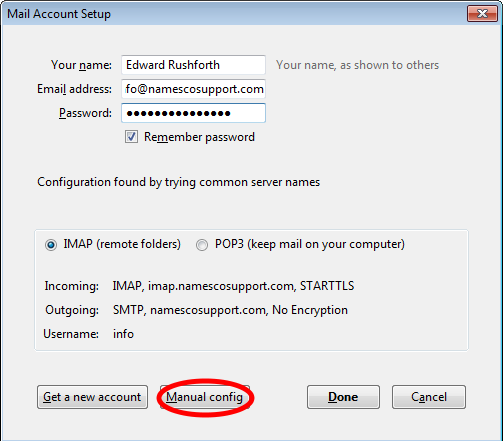
On the next page click Manual Config.
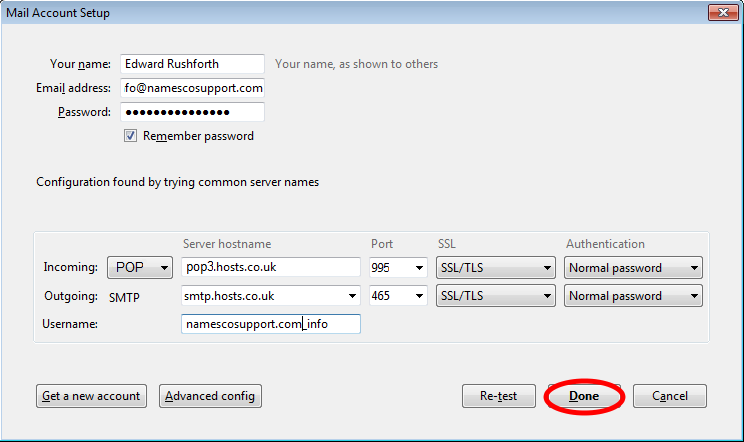
Your name, email address, and password will already be filled in for you. Please fill in the server settings as follows:
- Incoming Type – POP
- Incoming mail server – pop3.hosts.co.uk
- Outgoing mailserver (SMTP) – your SMTP server will be smtp.hosts.co.uk only if you your have purchased Authenticated SMTP Access, if you need to purchase this product please contact our Sales team on 0345 363 363 2
- User Name and Password – Your Username and Password are as you have set up in your Online Control Panel, if you are unsure of your Username and or Password please see this guide to reset your Password, www.names.co.uk/support/articles/how-to-change-your-email-password/
Once this is complete please click Done.
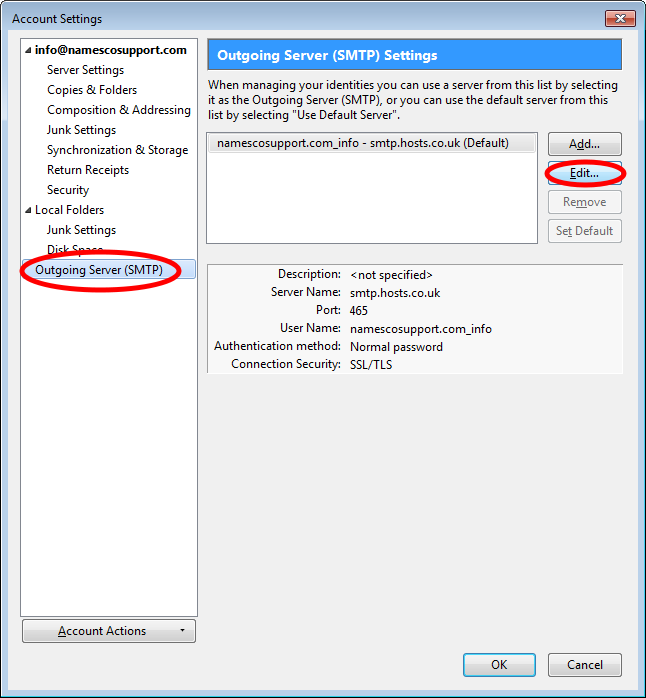
Now we just need to enter your SMTP login details, so right click on your account and select Settings….
Select Outgoing Server (SMTP) then select Edit….
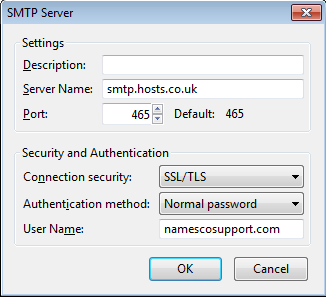
Enter your SMTP User Name, as you have set up in your Online Control Panel, if you are unsure of your Username and or Password please see this guide to reset your Password, www.names.co.uk/support/articles/how-to-reset-your-authenticated-smtp-password/.
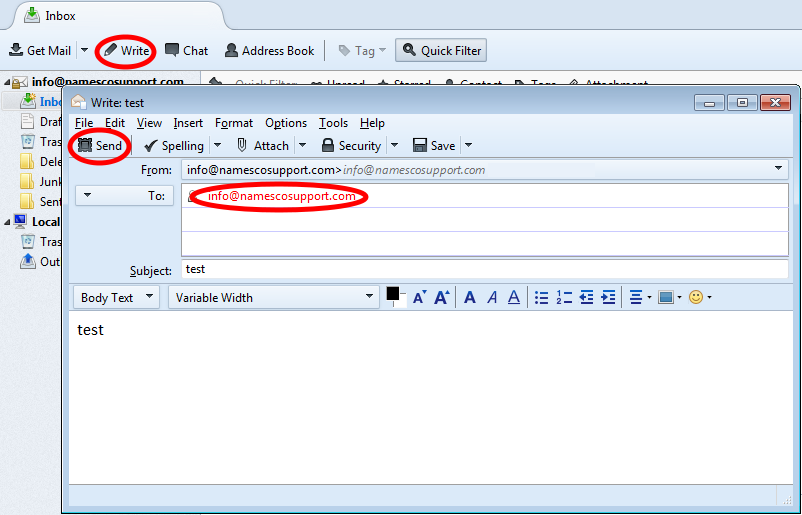
Now we need to compose a new email to prompt Thunderbird to ask for the Outgoing (SMTP) password, to do this click Write, enter your email address, add a subject and some body text, then click Send.
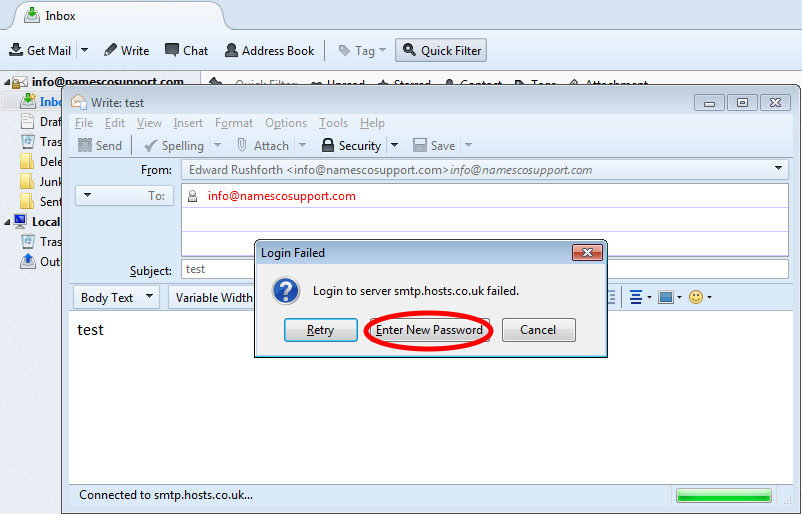
When the box appears click Enter New Password.
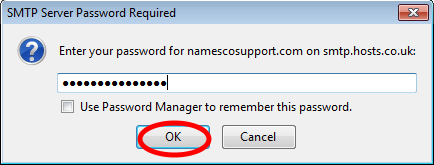
Enter your SMTP password, tick the box to remember your password and click OK, if you are unsure of your Username and or Password please see this guide to reset your Password, www.names.co.uk/support/articles/how-to-reset-your-authenticated-smtp-password/.
Important Note – Moving from POP3 to IMAP
Switching an email account from POP3 to IMAP changes how your emails are stored, synchronised, and deleted.
With IMAP, emails remain stored on the mail server and are mirrored across all devices. Any action taken in one location — such as deleting, moving, or organising messages — will automatically apply everywhere. Deleting an email on your phone, for example, will also delete it from your desktop and webmail.
Under POP3, emails are downloaded to a single device and can be removed from the server. Deleting a message only affects that device, which can create differences between devices but also prevents global deletion.
Changing from a POP3 connection to IMAP will result in existing locally stored emails not being present on the server, and messages can be permanently deleted or lost if they are not backed up beforehand, depending on how the email client is configured.
To prevent permanent data loss, you must create a full backup of your mailboxes before making this change. If you are unsure how to back up your emails, additional guidance or managed assistance may be available.