


How to Verify my gTLD Domain Name (.com, .net, .org, .info and others)
Introduction
When purchasing certain generic top-level domains (gTLDs) such as .com, .net, .org, .info, .biz and similar extensions, you will receive an email asking you to verify the contact details entered at registration.
This guide explains how to verify your domain details to ensure the provided information is correct and start using your domain name.
Table of Contents
- Checking the details you entered for your domain name
- Verifying your domain via email
- What happens if you do not verify in time
- Resending the verification email
Step One – Check Your Registration Details
When purchasing a gTLD domain ( .com, .net, .org, .info etc. ), it is important to ensure that all contact details entered during registration are accurate.
Incorrect contact details may prevent you from receiving the verification email and can result in the domain becoming suspended.
Step Two – Verify via Email
If the registration details are correct, you will receive a verification email at the Domain Registrant email address associated with the domain. The email will come from noreply@names.co.uk with the subject “Verification required for domainname.com”.
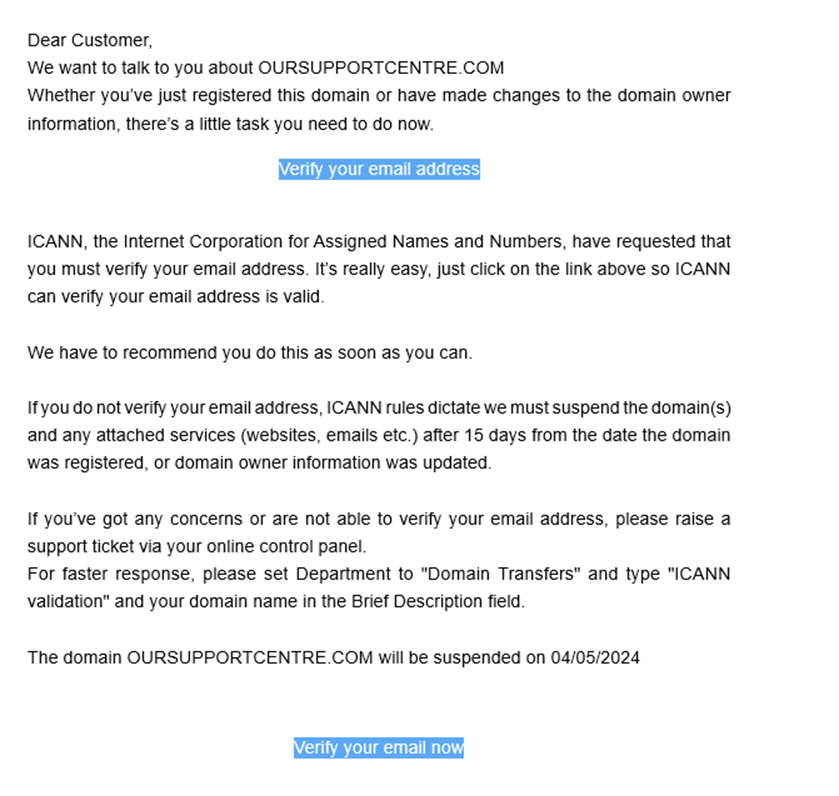
Please click on the button in the email saying “Verify your email now”. Once this is done you shouldn’t need to do anything further.
If you are unable to find the email in your inbox, please check your Junk or Spam folder in your email folders too, in case they have gone in here.
Step Three – What Happens If You Do Not Verify in Time
If verification is not completed within 15 days of registration, the domain will be automatically suspended by the registry.
When this occurs:
- The domain will typically stop resolving for website and email services.
- A WHOIS lookup will often display temporary registry verification nameservers such as:
verification1.plaindns.net
verification2.plaindns.net
These nameservers are applied at registry level and indicate that the domain is suspended pending registrant verification.
Step Four – Resending the Verification Email
If the original verification email has expired or cannot be located:
- Open a web browser.
- Enter the domain name into the address bar.
- You will usually be taken to a registrar notification or suspension page.
- Select “Resend Verification Email” or “Send Email.”
This will immediately issue a new verification message to the registrant contact email address on file. After requesting a resend, please check Spam or Junk folders as well as your inbox.
Once verification is completed, the domain’s original nameservers are automatically reinstated, and standard DNS propagation will then apply (up to 24 hours).
If You Are Not Receiving the Verification Email
If no verification email is being received, or you believe the contact email address is incorrect, simply raise a support request from within your Online Control Panel or call us on 0345 363 3634. Our Support team are here to help and ready to assist you with your enquiry.